
Have you ever tried to watch a software tutorial or a presentation on your phone, only to realize the text on the screen is the size of an ant? You turn your phone sideways, you squint, and you might even try to pinch the screen to get a closer look.
When a standard video compresses a massive computer monitor into a tiny mobile screen, the details vanish.
This is exactly why the best digital creators and educators use a zoom effect in their videos. When they click a specific button or type in a text box, the camera smoothly pushes in to show you exactly what is happening. For years, getting this effect meant spending hours in complex video editing software. Today, however, "Auto-Zoom" technology has changed the game entirely.
But how does it actually know where to look? How does a piece of software understand what is important on your screen and what is just background noise?
Let us pull back the curtain and explain how auto-zoom technology actually works in plain, simple English.
If you want the creator-facing overview first, read What Is Auto-Zoom Screen Recording? (Complete Guide). For tool comparisons, see Top 5 Auto-Zoom Screen Recorders Compared.
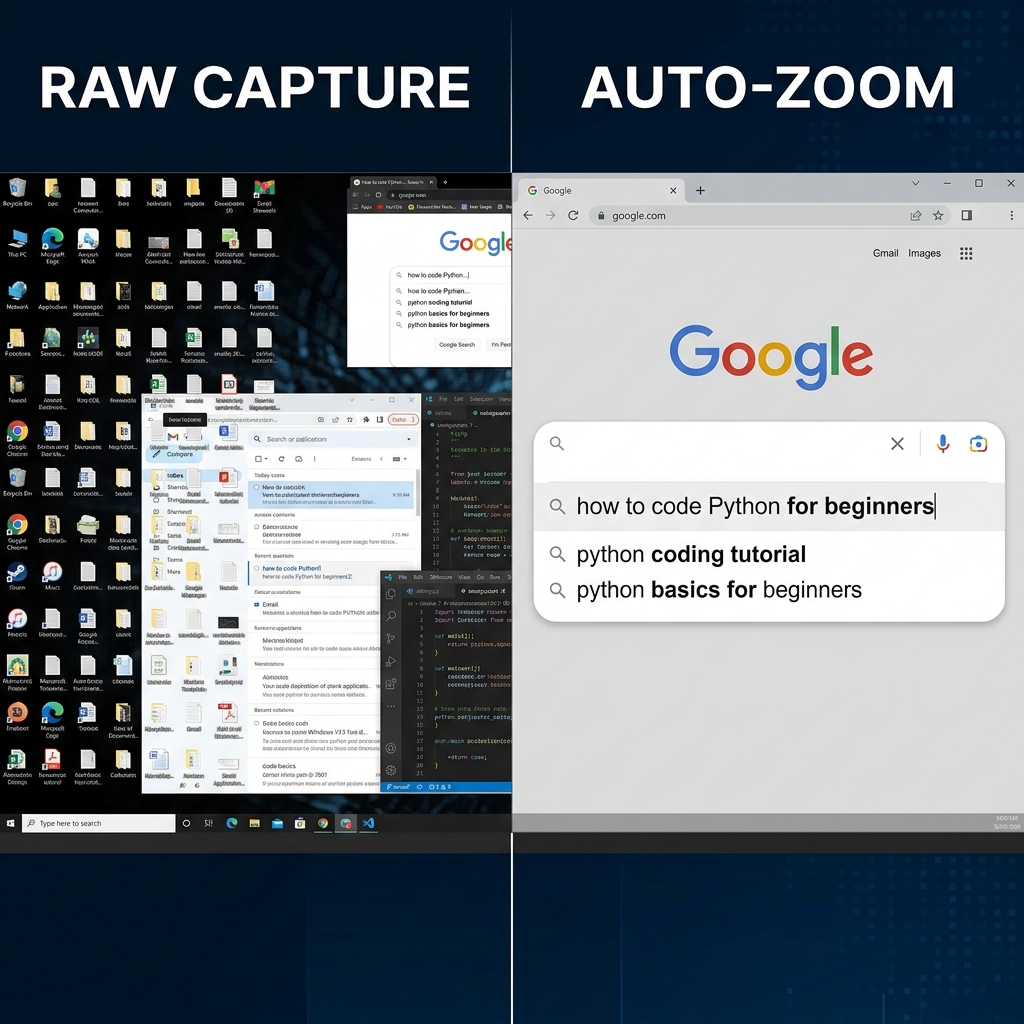
The Magic is in the Coordinates
To understand auto-zoom, you first have to understand how your computer views your screen. Your monitor is not just a picture; it is a giant, invisible grid made up of coordinates (an X-axis for left and right, and a Y-axis for up and down).
When standard screen recording software runs, it blindly records the entire grid, from the top-left corner to the bottom-right corner, ignoring everything else.
Auto-zoom technology, however, is much smarter. It actively "listens" to the data happening on that grid while you record. It focuses on two primary triggers:
- Mouse Clicks: When you click your mouse, the software instantly registers the exact X and Y coordinates of that click.
- Keystrokes: When you select a text box and begin typing, the software registers the location of your blinking text cursor.
Quality implementations also apply debouncing and intent windows: a burst of clicks in one region should not yank the virtual camera around like a strobe light. The engine waits for a stable target (or a dominant region) before committing to a new crop.
Creating the "Bounding Box"
Once the software knows where the action is happening, it needs to decide how much to zoom in. It does this by drawing an invisible square around the coordinate of your click or text cursor. This is called a "bounding box."
The technology calculates the perfect size for this box so that the button you clicked—and the immediate area around it—fills the center of the video. Everything outside of that invisible box is temporarily cropped out.

The Art of the "Smooth Glide" (Easing)
If the software simply snapped from a full-screen view instantly to the zoomed-in box, it would look terrible. It would be jarring, and it might even give the viewer a headache.
The secret to great auto-zoom technology lies in mathematical algorithms called "easing functions."
Instead of instantly teleporting the viewer's eyes to the new location, the software calculates a smooth path from the full-screen view to the zoomed-in bounding box. Easing makes the camera movement start slowly, speed up in the middle, and gently slow down as it reaches the target. This creates a cinematic, highly professional zooming effect that feels completely natural to the human eye.
Why Auto-Zoom Needs a Smooth Cursor
There is one major challenge that engineers face when building auto-zoom technology: human error.
If you have a shaky hand, or if you move your mouse erratically before clicking a button, the auto-zoom system might get confused. It might try to track those jerky movements, resulting in a video that bounces around the screen aggressively.
This is why the most advanced auto-zoom technology must be paired with smooth cursor technology. By automatically converting a user's rapid, chaotic mouse movements into an elegant, calculated glide, the auto-zoom engine has a stable target to follow. The result is a flawless visual presentation.
Where the Processing Happens (Privacy and Performance)
Serious desktop recorders usually compute zoom targets locally so your pixels are not streamed to a server just to decide a crop. That matters for internal demos, customer data, and finance workflows. It also keeps latency low—your preview should track your pointer without feeling like a sluggish remote desktop.
Skipping the Hard Work
Understanding the math behind auto-zoom is fascinating; re-implementing it as manual keyframes is miserable. Modern capture tools run this pipeline in real time so you can focus on narration and flow.
Cubix Capture implements this class of pipeline: click and text signals drive zoom targets, easing keeps motion human, and cursor smoothing keeps the tracker from chasing hand jitter.
Related reading: