
Have you ever recorded a quick tutorial for a coworker, a client, or a YouTube channel, only to watch it back and cringe? You are definitely not alone.
Most screen recordings end up looking messy, confusing, and difficult to follow. The viewer gets lost trying to figure out what you are clicking on, and instead of learning, they just feel frustrated. But here is the good news: it is not your fault. Standard recording tools just capture raw data, which is rarely ready to be presented.
To make a video look truly professional, you need to change how the information is delivered. Here is the exact recipe to figure out why your screen recordings look amateur, and the simple steps to fix them immediately.
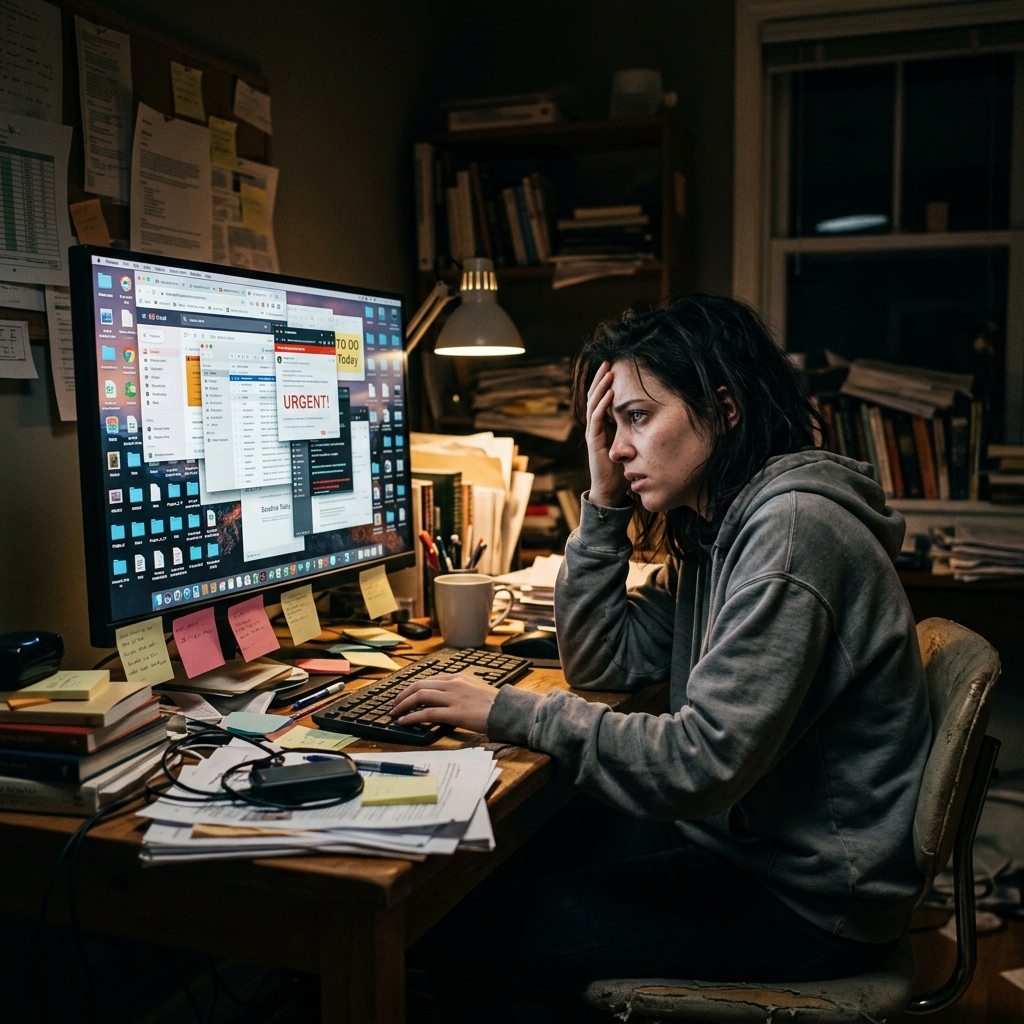
Reason 1: Viewers Have to Search the Screen
Think about the size of your computer monitor compared to a mobile phone screen. When you record your entire wide desktop to show a small button inside a software menu, that button becomes practically invisible to your audience.
If a viewer has to squint to read your text or guess where your mouse is, the video instantly feels unprofessional.
Fix: Guide Attention with Auto-Zoom
Professional videos never force the audience to search for the action. Instead, they bring the action to the audience. When you are explaining a specific feature, the video needs to zoom in on that exact spot. This removes all the unnecessary clutter on the edges of your screen and clearly says, "Focus right here." It makes your content incredibly easy to digest.
Reason 2: Cursor Motion Feels Chaotic
Pay close attention to your hand the next time you use your computer. When we are thinking about what to say next, we naturally wiggle the mouse, trace random circles, or jump the cursor back and forth across the screen.
While that feels perfectly normal to you, a frantic, jittery mouse pointer is highly distracting for anyone watching the video. It makes the presentation feel chaotic and rushed.
Fix: Smooth Cursor Behavior
A premium tutorial requires a calm visual guide. Your cursor should glide deliberately from one point to the next. Smooth cursor movements transform your erratic, real-life mouse clicks into elegant, sweeping lines. It relaxes the viewer and makes the entire video look like a carefully planned, high-end presentation.

Reason 3: Your Visual Stage Is Cluttered
A great presentation needs a clean environment. If you record your screen and the viewer can see your scattered personal files on the desktop, your messy taskbar, or a distracting browser background, it immediately lowers the quality of the video.
Fix: Use Intentional Background Staging
You need to isolate the software or website you are presenting and place it on a professional stage. Adding depth to your video by placing your screen over a smooth color gradient or a dynamic live background completely changes the vibe. It stops your video from looking like a basic screen capture and turns it into a studio-quality video.
A Practical No-Edit Workflow
Now, knowing this recipe is great, but fixing these issues manually is a nightmare. Taking a raw video and spending three hours in an editing software to add zoom effects, hide your messy mouse movements, and add backgrounds is exhausting. Most people do not have the time or the skills for that.
The smartest way to fix your videos is to use a tool that does all of this work for you while you are recording.
This is where a screen recorder like Cubix Capture completely changes the game. It is designed to act like an automatic video editor. As you naturally talk and click through your presentation, it automatically applies auto-zoom to your actions, perfectly smooths out your cursor, and frames your video over stunning live backgrounds.
You do not need advanced editing skills to improve recording quality. You need consistent visual rules and a capture workflow that supports clarity by default.
Quick Self-Audit Before Publishing
Use this 30-second check:
- Can a first-time viewer instantly identify your active click target?
- Is text readable on a laptop at normal zoom?
- Does cursor motion feel calm and deliberate?
- Is there any desktop clutter pulling attention away?
- Does the video stay focused on one goal?
If any answer is no, fix that item before publishing.
Common Mistakes That Keep Reappearing
- Recording full-screen for every tutorial
- Speaking faster than visual actions progress
- Leaving visual polish for post-production only
- Skipping a quick preview test before publishing
Related reading: