
Digital communication has evolved rapidly. Today, instead of typing out a long, confusing email to explain a problem or show a process, we simply show our screens. It is faster, clearer, and leaves no room for misunderstanding.
However, when looking for the right tool to share your screen, you will constantly run into two terms: Screen Capture and Screen Recording.
People often use these terms interchangeably, but they are actually two completely different things, serving completely different purposes. Knowing exactly which one to use—and when to use it—will save you time and make your communication much more effective.
Let us break down the exact differences in simple terms, look at real-life examples of when to use each, and explore how to make your digital sharing look incredibly professional.
If you are deciding where to run the tool—not just what to capture—read Chrome Extensions vs Desktop Apps for Screen Recording. For a full feature checklist, use How to Choose a Screen Recorder in 2026: Buyer's Guide.
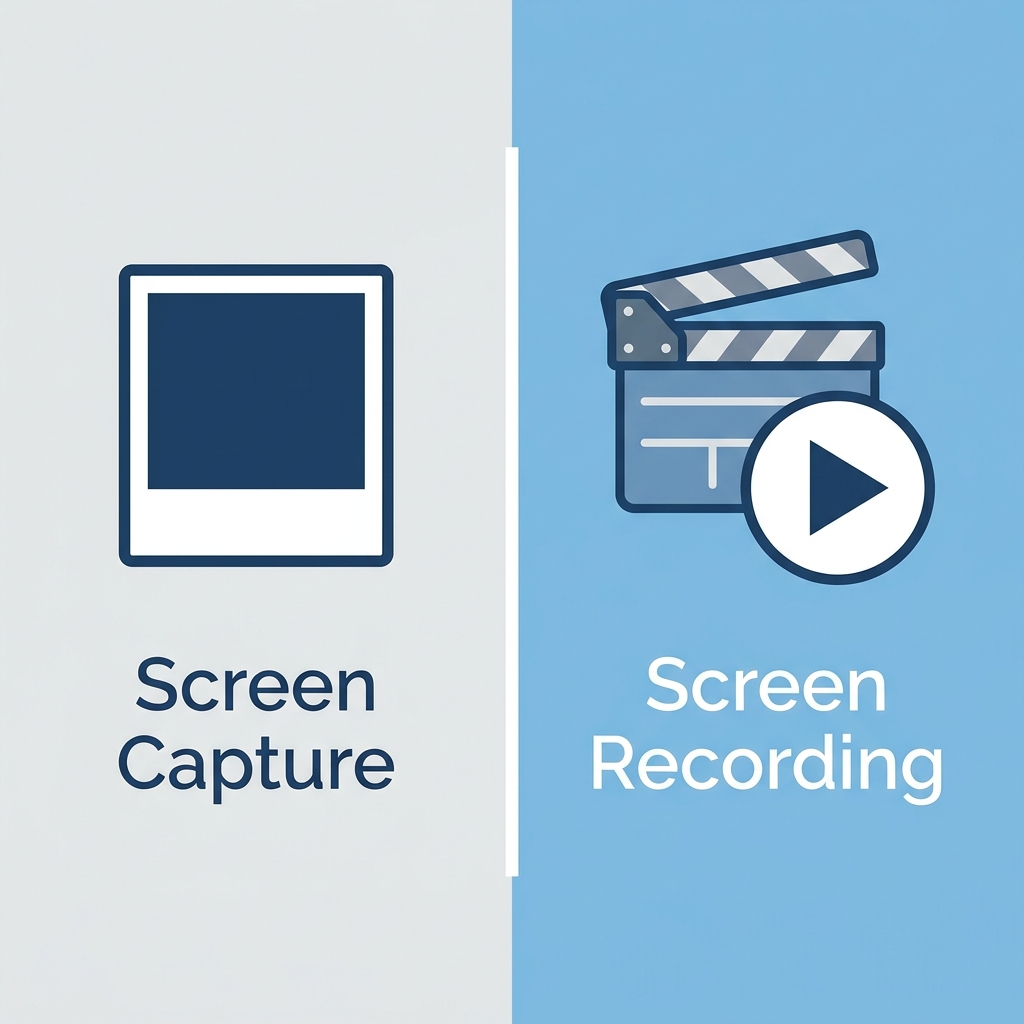
What is a Screen Capture? (The Snapshot)
A screen capture, most commonly known as a screenshot, is a static digital image of whatever is visible on your computer or phone monitor at that exact second. Think of it as taking a photograph of your screen.
There is no motion, no audio, and no progression of time. It is just a frozen moment.
Best Real-Life Uses for Screen Captures:
- Error Messages: When a software program crashes and gives you a weird code, taking a screen capture is the fastest way to send that exact error to IT support.
- Design Feedback: If you are looking at a website and notice a button is the wrong color, capturing the screen and drawing a quick red circle around the button explains the issue instantly.
- Receipts and Proof: Snapping a quick picture of a payment confirmation or a flight itinerary for your records.
Screen captures are perfect for simple, static information that can be understood at a single glance.
Screen capture tools excel when the entire message is visible in one frame: a price, an error string, a layout bug, a configuration value. They are also ideal when bandwidth or ticket systems favor lightweight PNG or JPEG attachments.
What is a Screen Recording? (The Movie)
A screen recording, sometimes called a screencast, is a video of your computer screen over a period of time. It captures every mouse movement, every click, every typed word, and the transitions between different windows or software applications. Most of the time, screen recordings also capture audio, allowing you to narrate exactly what you are doing.
Best Real-Life Uses for Screen Recordings:
- Tutorials and How-Tos: Showing a new employee how to navigate the company's software system step-by-step.
- Product Demos: Guiding a potential customer through the features of your app and showing them exactly how it solves their problem.
- Complex Bug Reports: Sometimes an error only happens after a specific series of clicks. Recording the screen shows the developer the exact path you took to trigger the bug.
Screen recordings are essential when you need to explain a workflow, show a process, or provide context that a single static image simply cannot convey.
That is why customer support teams, customer success, and engineering triage often prefer a short clip for repro steps—see Best Screen Recorder for Customer Support Teams.
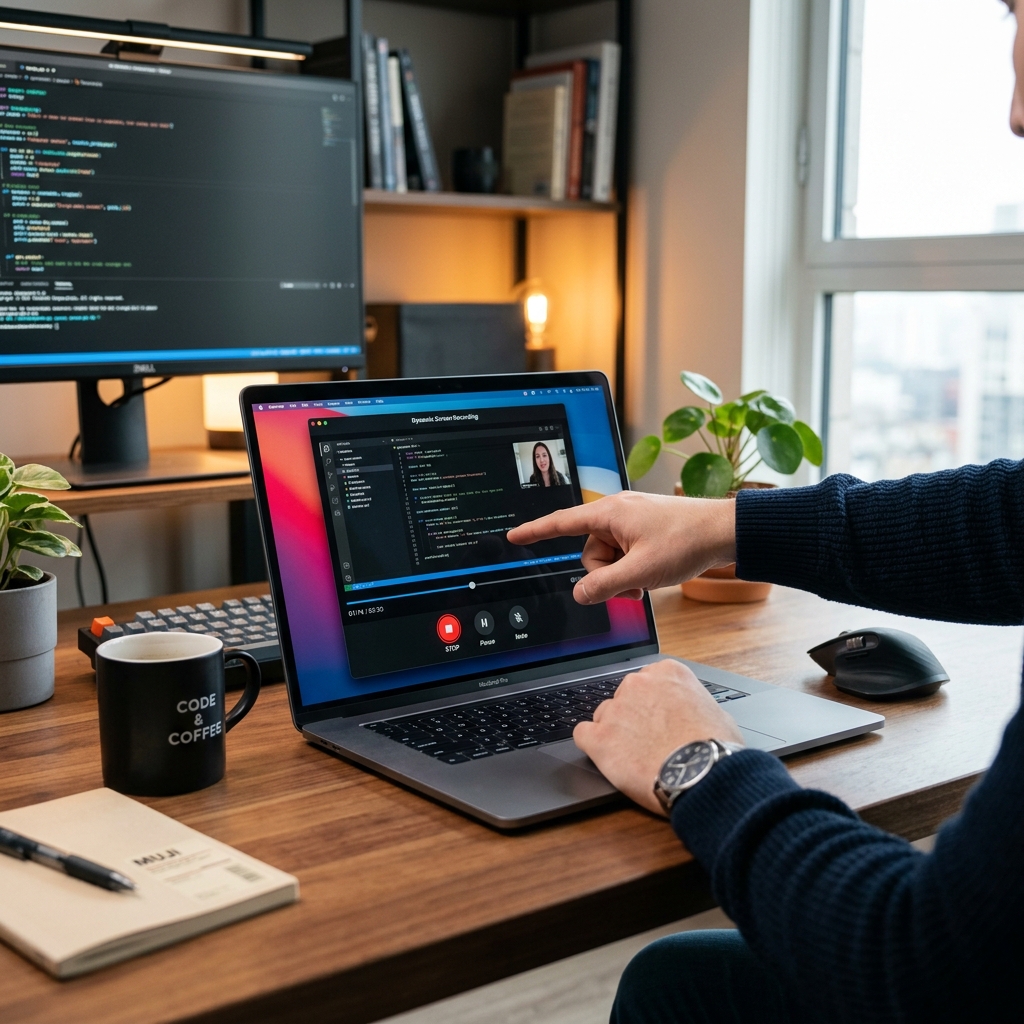
When a Screenshot Is the Wrong Tool
A screen capture fails when any of these are true:
- The issue is sequential ("first I filter, then I export, then it crashes").
- The bug depends on timing, animation, or scrolling.
- You need to capture system audio or mic narration alongside the UI.
- You are teaching a multi-step workflow and a single frame would require paragraphs of explanation.
In those cases, screen recording is the correct medium—even if the final video is only thirty seconds long.
The Catch: Making Screen Recordings Watchable
If you just need to show a static error code, a basic screen capture tool is all you need. But the moment you need to explain how to do something, you must use a screen recording.
Here is the problem: while taking a screen capture is foolproof, making a screen recording that actually looks good is quite difficult.
Standard screen recordings often look messy. The viewer has to watch a tiny, jerky mouse cursor fly across a massive, cluttered computer desktop. The text on the screen is usually too small to read, making the viewer squint and eventually lose interest.
If you are using a screen recording to teach a class, onboard an employee, or sell a product, a messy video reflects poorly on your message.
Upgrading Your Screen Recordings Automatically
To fix these visual issues, people traditionally had to record their video, export it, and spend hours in professional video editing software. They had to manually cut out the shaky mouse movements and manually zoom the video in so the viewer could read the text.
Fortunately, you no longer have to do that.
If you decide that a screen recording is the right format for your message, you can use a tool that polishes the presentation while you record—so you are not stuck keyframing zooms later.
Cubix Capture is one example of that approach: smooth cursor motion, intelligent auto-zoom on clicks and typing, and optional live backgrounds so the frame stays readable on small screens and looks intentional, not like a raw desktop grab.
Communication should be easy, and the tools you use should help you look your best without draining your time. When you are ready to try that workflow, start from the Cubix Capture product page.
Related reading: