
Have you ever opened the settings menu of a video recording software and stared blankly at the options? Among all the confusing technical jargon, one setting always stands out: "FPS" or frames per second.
Usually, you are forced to make a choice between recording at 30fps or 60fps.
If you are like most people, you might randomly guess or just leave it on the default setting. But what do these numbers actually mean? And more importantly, does switching from 30fps to 60fps make a noticeable difference in how your final video looks to your viewers?
The short answer is yes, it matters quite a bit. But the long answer reveals a hidden truth about video quality that most people completely miss. Let us break down exactly what these numbers mean, which one you should use, and how to make your videos look incredibly smooth.
If you are choosing software and want the full decision framework—not only frame rate—read How to Choose a Screen Recorder in 2026: Buyer's Guide.
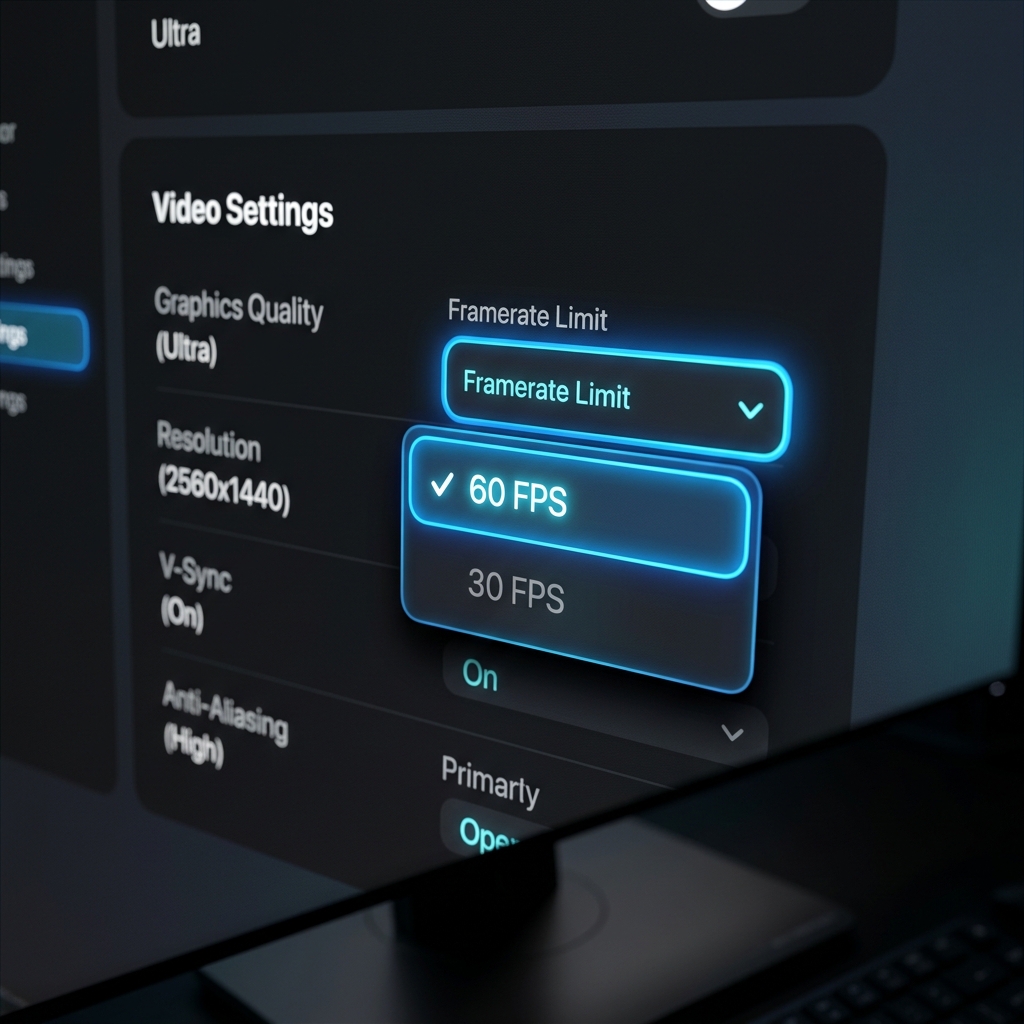
What Exactly is FPS?
To understand the difference, you need to know how video actually works. A video is not a continuous, moving image. It is actually a series of still photographs played back-to-back so fast that your brain gets tricked into seeing motion.
- 30fps means the camera is capturing 30 individual pictures every single second.
- 60fps means the camera is capturing 60 individual pictures every single second.
By doubling the number of pictures taken each second, the video captures twice as much information.
Important nuance: your export frame rate and your upload platform matter too. Some hosts re-encode video and cap motion. Even a silky 60fps source can look ordinary if the pipeline downscales aggressively. Always validate on the exact channel where your audience watches (YouTube, LMS, Slack, internal wiki).
The Case for 30fps: The Reliable Standard
For decades, 30 frames per second has been the standard for television broadcasts and basic web videos. It looks natural to the human eye because we are so used to seeing it.
If you are recording a very slow-paced presentation, like clicking through a static PowerPoint slideshow or recording a simple voiceover over a document, 30fps is completely fine. Because there is very little motion happening on the screen, your viewers will not notice any difference. Additionally, 30fps videos result in smaller file sizes, which makes them faster to upload and share.
30fps is also a practical default when you are optimizing for async internal comms—short Loom-style updates, quick bug repros, or ticket attachments—where bandwidth and storage matter more than cinematic motion.
The Case for 60fps: The Buttery Smooth Upgrade
If 30fps is the standard, 60fps is the premium upgrade.
Because 60fps captures twice as many frames, fast motion looks incredibly fluid, crisp, and lifelike. In the world of screen recording, this makes a massive difference when you are showing dynamic actions.
If your video involves scrolling quickly through a long webpage, dragging windows across the screen, or showing off complex software animations, 60fps makes that motion look "buttery smooth." There is less motion blur, making the video feel highly professional and pleasing to the eye.
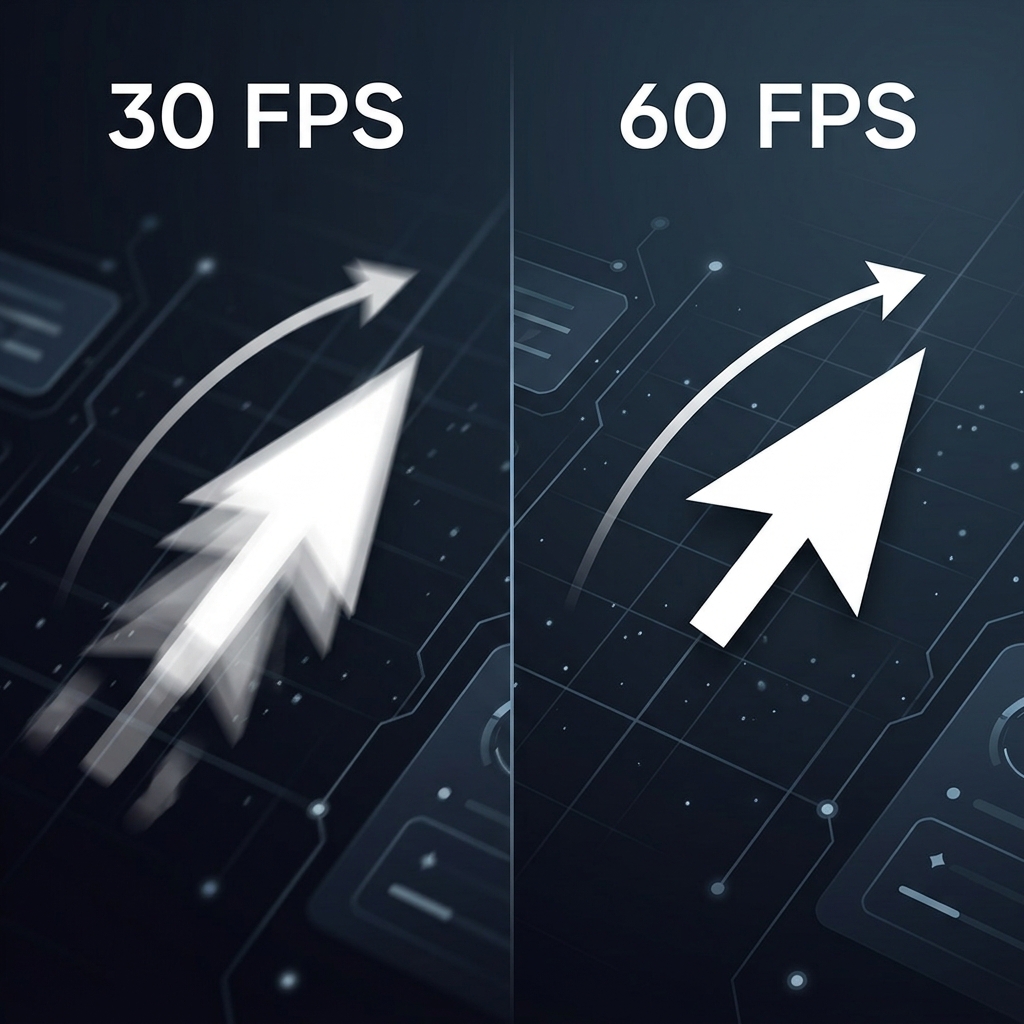
Rule of thumb for 2026: if your recording includes lots of scrolling, dragging, animation-heavy UI, or fast pointer motion, prefer 60fps when your machine can handle it without dropping frames. Dropped frames feel worse than a stable 30fps recording.
Recording FPS vs How the Video Is Framed
Even perfect fps cannot fix illegible UI on mobile. If you record an entire 4K desktop and shrink it to a phone, viewers still squint. That is why many teams pair higher frame rate with auto-zoom workflows—see What Is Auto-Zoom Screen Recording? (Complete Guide).
If your recordings feel "cheap" but you cannot explain why, the issue may be presentation—not fps. Start with Why Your Screen Recordings Look Unprofessional.
The Hidden Truth: Frame Rate is Only Half the Battle
Here is the secret that most technical guides will not tell you: recording at a high frame rate like 60fps will not automatically make your video look professional.
In fact, 60fps can sometimes make a bad video look worse.
Think about it. If you have a cluttered desktop background, and you are rapidly and nervously shaking your mouse around the screen trying to find a tiny button, a 60fps recording will capture every single one of those erratic, distracting movements with perfect clarity.
Smooth frame rates require smooth actions. If the content on the screen is chaotic, the viewer will still get a headache trying to follow along, regardless of the video settings.
How to Get True Visual Smoothness
To create a screen recording that truly captures your viewer's attention, you need to combine the technical smoothness of video with the visual smoothness of your presentation.
You need to ensure your mouse movements are calm, your viewer's focus is guided properly, and your background is free from distractions.
Normally, achieving this level of polish requires recording the video and then spending hours in a complex editing program to manually fix the pacing and zoom in on details. A faster path is to fix motion and framing at capture time so fps is not doing all the work alone.
Cubix Capture is built around that idea: pair the frame rate you choose with smooth cursor movement, auto-zoom on interaction, and live backgrounds so the picture stays legible and calm. High fps captures smooth motion; guided framing tells viewers where to look—together, that is closer to a presentation than a raw screen dump.
Related reading: