
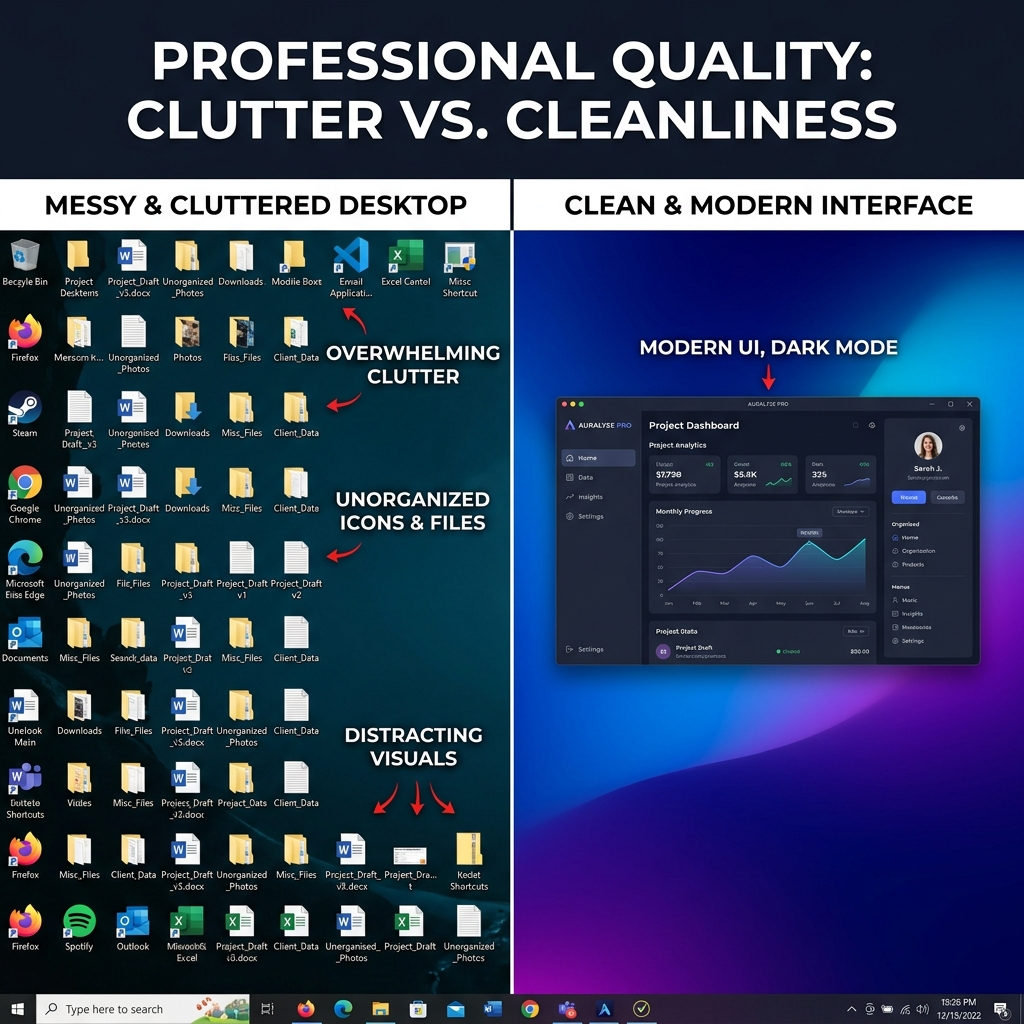
If you watch software tutorials or product demos from top creators today, you will notice a major shift in how they look. Gone are the days of recording a raw, messy computer desktop with a distracting taskbar and personal wallpaper.
Today, the standard for a professional video is the "floating window" effect. The application sits perfectly isolated in the center of the screen, hovering beautifully over a smooth, colorful gradient background.
This single visual upgrade completely changes how your audience perceives your video. A gradient background removes distractions, keeps the viewer focused on your software, and makes your brand look highly premium.
If you want to achieve this cinematic look, you have a few different paths you can take. Some require hours of video editing, while others do it automatically. Here are the 5 best screen recorders and tools to help you add gradient backgrounds to your videos.
1. Cubix Capture (The Automated Solution)
If you want the premium gradient look but do not have the time or skills to manually edit videos, Cubix Capture is the smartest choice on the market.
Instead of forcing you to fix your background in post-production, Cubix Capture applies the background while you record. You simply select your preferred gradient or dynamic live background before you begin. As you capture your screen, the software automatically isolates your application and places it perfectly over the gradient.
Beyond just the background, it solves the other major presentation issues simultaneously. It automatically applies smart auto-zoom so your viewers can read the text, and it perfectly smooths your cursor movements for a professional look. It is available for both Windows and Mac, giving you a studio-quality video the exact second you hit stop, with zero editing required.
2. Screen Studio (The Mac-Only Option)
Screen Studio helped popularize the cinematic, gradient-background look for software tutorials. It is an incredibly well-designed piece of software that automatically adds beautiful gradients, drop shadows, and auto-zoom to your recordings.
The major drawback? It is built exclusively for macOS. Because it relies heavily on Apple's deep system frameworks, it does not work on Windows PCs. If you are a dedicated Mac user, it is a fantastic tool, but if your team uses a mix of operating systems, you will be left looking for an alternative.
3. OBS Studio (The Free, Manual Workaround)
OBS Studio is the gold standard for live streamers, and because it is highly customizable, you can technically use it to record with a gradient background.
To do this, you have to build a custom "Scene." You add a color source or an image file of a gradient to the bottom layer. Then, you add a "Window Capture" source on top of it, and manually resize your software so it sits in the middle of the gradient.
While it is free, the downside is the friction. It takes time to set up, it can be heavy on your computer's resources, and it does not offer automated zooming or cursor smoothing. It is a very manual process for a quick tutorial.

4. Camtasia (The Heavy Video Editor Method)
Camtasia is a powerhouse in the corporate training world. It is a traditional screen recorder attached to a heavy video editing timeline.
To get a gradient background in Camtasia, you record your raw screen first. Then, you open the editing timeline, shrink your screen recording layer down, and manually drop a gradient image file onto the track beneath it. You can then add drop shadows and manually keyframe your zoom effects.
The results look great, but the cost is your time. Editing a five-minute video this way can easily take an hour of manual labor.
5. Canva (The Post-Recording Design Hack)
Canva is not a traditional desktop screen recorder, but it is a brilliant workaround for creating short, aesthetic social media clips.
You can use a basic free tool to record your raw screen. Then, you open Canva, select a video template with a beautiful gradient background, and upload your raw screen recording. You drag and drop your video over the gradient, resize it, and export the file.
This is an excellent, free method if you are just posting a 15-second teaser to LinkedIn or X (Twitter). However, because Canva is not built for long-form video editing, this method falls apart completely if you need to create a ten-minute YouTube tutorial or a complex product demo.
The Smartest Workflow
Getting a gradient background is no longer a secret reserved for professional video editors. The method you choose simply depends on how much time you are willing to spend.
If you enjoy manual design work, tools like Camtasia or Canva will get the job done. But if your goal is to create highly professional, engaging tutorials quickly, using an automated tool like Cubix Capture allows you to completely skip the editing room and share your message with the world instantly.
Related reading: