
Everywhere you look, you see the term "4K." It is on television boxes, smartphone camera settings, and video streaming platforms. 4K simply means ultra-high definition—a picture so sharp and detailed that it looks like real life.
Naturally, as video communication becomes the standard for work and teaching, people are starting to ask: Do my screen recordings need to be in 4K?
The idea of making a tutorial or a software demo look as crisp as a cinematic movie sounds amazing. However, choosing the highest possible resolution is not always the smartest move. In fact, recording your computer screen in 4K can sometimes cause more problems than it solves.
Here is a straightforward guide to understanding exactly when you need 4K screen recording, when you absolutely do not, and how to get the best visual quality without the heavy technical drawbacks.
Pair this with How to Choose a Screen Recorder in 2026: Buyer's Guide for capture settings holistically, and 60fps vs 30fps Screen Recording: Does It Actually Matter?—resolution and frame rate decisions usually land together.
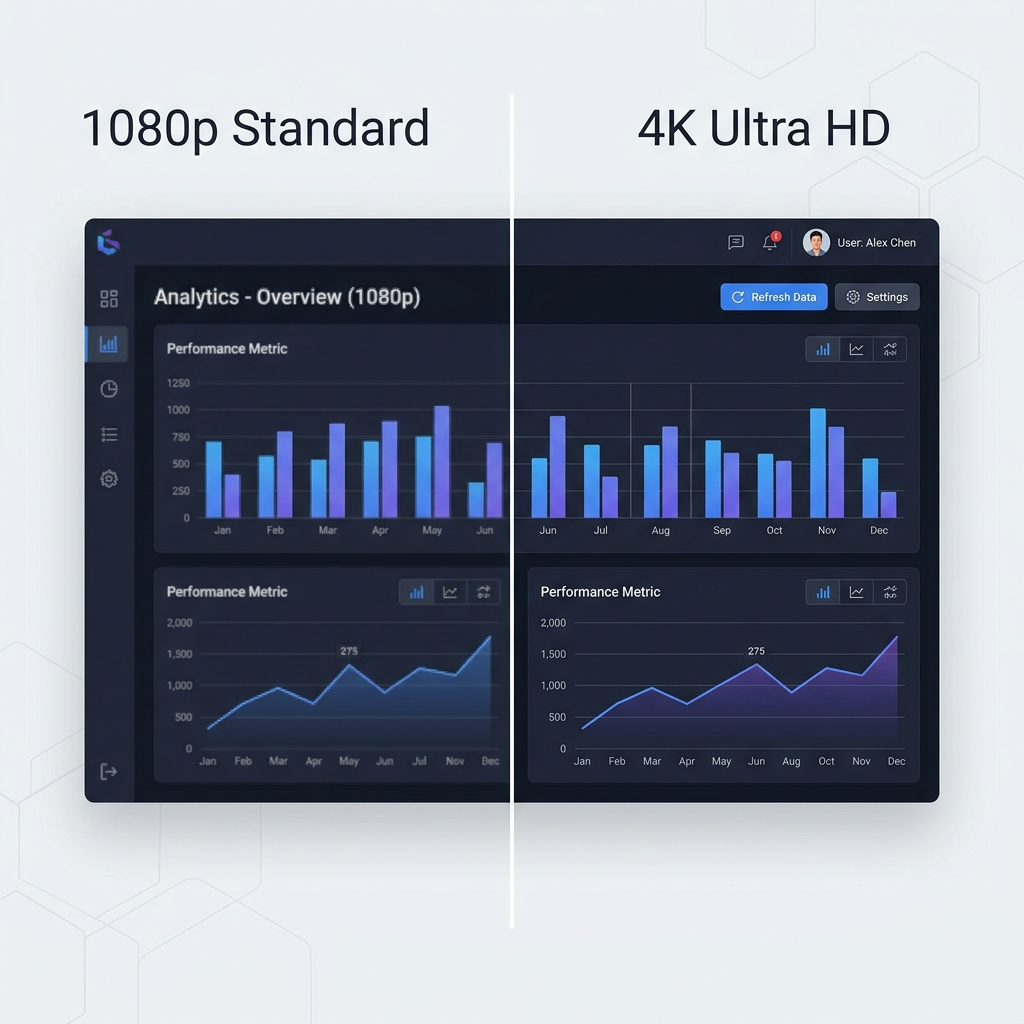
When You Actually Need 4K Screen Recording
There are a few specific scenarios where having that massive amount of pixel data is highly beneficial.
1. Presenting on Massive Screens
If you are recording a video that will be played on a huge projector at a conference or on a large television in a boardroom, 4K ensures the text and graphics remain sharp. Stretching a standard video across a giant screen can make the details look fuzzy, so the higher resolution is necessary here.
2. Manual Video Editing and Cropping
Professional video editors love 4K. Why? Because the massive size of the video allows them to "zoom in" or crop the footage during the editing process without losing any quality. If they record a full computer screen in 4K, they can manually zoom in on a tiny menu in their editing software, and the text will still be perfectly readable.
3. Archival Masters and Repurposing
Some teams treat screen capture like B-roll: one high-resolution master, then multiple crops for LinkedIn, YouTube Shorts, and docs. That workflow favors 4K—if someone will actually maintain the asset library. For everyone else, "master in 1080p + smart zoom at capture" is often enough.
When You Absolutely Do Not Need 4K
For the vast majority of daily communication, tutorials, and product demonstrations, 4K is overkill. Here is why you might want to skip it.
1. Massive File Sizes
4K videos capture millions of extra pixels every single second. This means the video file size will be enormous. If you need to quickly send a video to a coworker via Slack or email, a 4K file will likely be too large to attach. Furthermore, it will take much longer to upload to the internet.
2. Computer Performance Lag
Recording in ultra-high definition requires a lot of processing power. If you are trying to record a complex software program while simultaneously capturing the screen in 4K, your computer might slow down, overheat, or cause your video to stutter and freeze.
3. Most Viewers Are on Mobile Phones
Think about your audience. If your viewers are watching your video tutorial on a six-inch smartphone screen, their eyes literally cannot tell the difference between standard high-definition and 4K. You go through all the trouble of managing a massive file for a visual difference the viewer will never even see.
Downscaling, Bitrate, and "Looks 4K on YouTube"
Recording in 4K does not guarantee delivery in 4K. Many creators export to 1080p for faster uploads; quality then depends on bitrate, encoder settings, and how aggressively the platform recompresses. If your real goal is readable UI, verify the final asset on the device your audience uses—not only the timeline master.
The Real Reason People Want 4K (And a Smarter Solution)
When most people say they want 4K screen recording, what they are really saying is: "I want my viewers to be able to read the small text on my screen clearly."
The traditional fix is a heavy 4K master plus manual zooms in post. A modern alternative is attention-guided capture: let the recorder magnify click targets and typing regions so 1080p stays legible on phones. That is the same problem space as What Is Auto-Zoom Screen Recording? (Complete Guide)—clarity without always scaling resolution.
Cubix Capture is built around auto-zoom, smooth cursor motion, and live backgrounds so you can prioritize readability and shareable file sizes instead of defaulting to 4K for every clip.
Related reading: