
Resolving the "Windows protected your PC" Warning
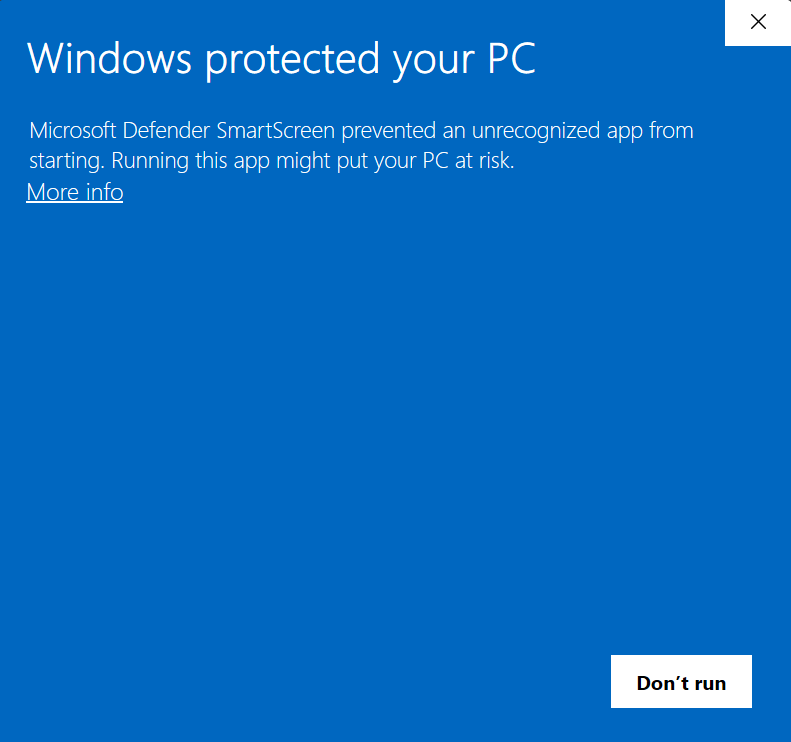
If you're installing Cubix Capture on Windows, you might see a Windows SmartScreen warning that says "Windows protected your PC".
Why is this happening?
This warning, known as Microsoft Defender SmartScreen, appears because Cubix Capture is a brand new application.
Microsoft's security systems haven't seen enough downloads of our app yet to automatically trust it. This is a standard security measure for all new software released by smaller developers.
The application is completely safe. It does not contain any malware or problems. The warning will disappear automatically once more users have downloaded the app.
How to Proceed
Follow these two simple steps to install Cubix Capture:
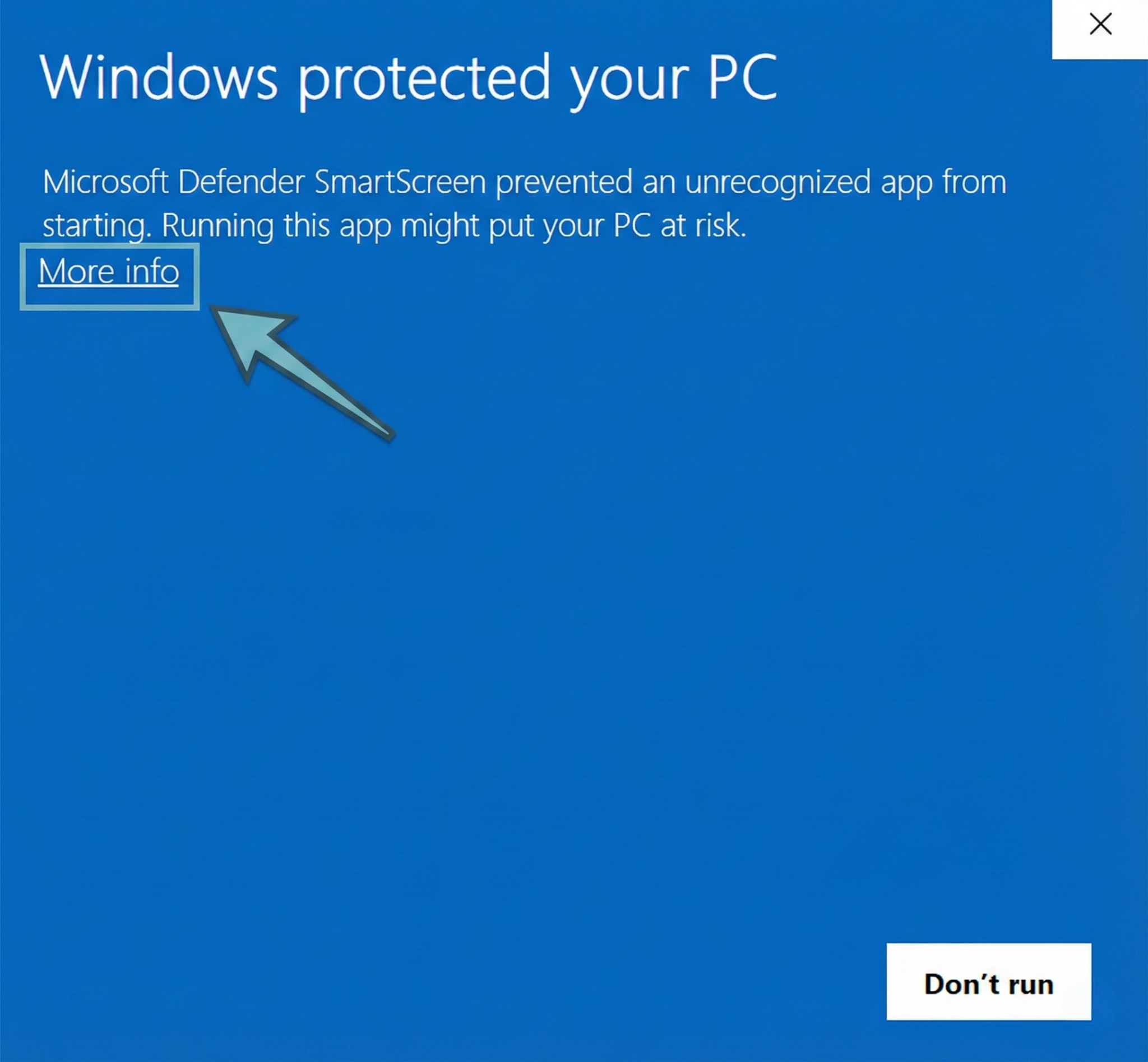
Step 1: Click "More Info"
When you see the initial warning screen, look for the More info link (usually underlined) and click it.
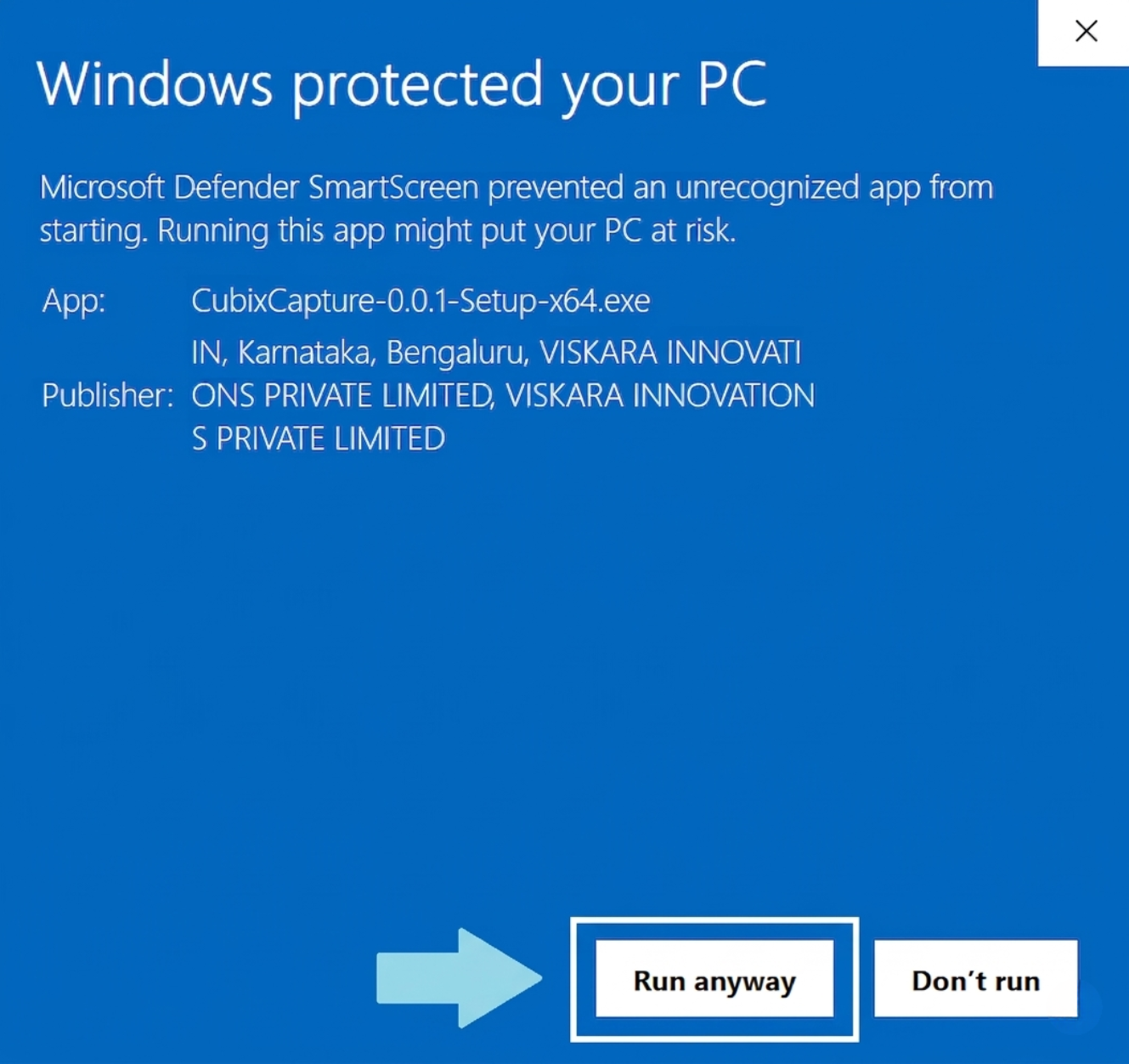
Step 2: Click "Run Anyway"
After clicking "More info", a new button will appear at the bottom called Run anyway. Click this button to start the installation.
That's it! The installation will now proceed normally.
Still Have Questions?
If you encounter any issues during installation or have concerns about the security warning, feel free to reach out to our support team. We're here to help ensure you have a smooth installation experience.